Overview
EUDAT B2INST HTTP REST API.#
Guidelines#
B2INST is the EUDAT service for registering and publishing research instrument metadata (PIDINST). In addition to its web-based GUI, B2INST offers an HTTP REST API. External applications or workflows can use this API to integrate B2INST with other services (e.g., institutional portals), to automate instrument record creation and updates, or to enable metadata harvesting by external catalogue services.
This section documents the v3 API. For earlier integrations, see the legacy v2 API reference, the conceptual v2/v3 comparison, and the JSON structure comparison.
The REST API#
B2INST provides a graphical, web-based interface, whose functionality is discussed in the corresponding user documentation page.
The B2INST HTTP REST API can be used for interaction with B2INST via external services or applications, for example for integration with other web-sites (research community portals) or for programmatic creation and update of instrument records. The API can also be used for metadata harvesting, although an OAI-PMH API endpoint is also provided for this purpose. This latter API will not be discussed here. This page will explain the basic concepts, authentication and all existing HTTP requests that can currently be used. The given examples are explained using curl commands.
Basic concepts#
The B2INST service uses several concepts which are briefly explained below. A scientific community has the roles of creating and maintaining metadata schemas and curating the instrument records which are part of a scientific domain or research project. B2INST users can be part of one or more communities. Some selected members of a community are also given the role of community administrators, which grants them the special rights needed for the schema definitions and record curation tasks.
Authenticated users can create instrument records as drafts, containing instrument metadata and optional files (e.g., manuals or calibration reports). Set files.enabled to false for a metadata-only record. The record’s metadata consists of B2INST core fields and optional community-specific extensions. A draft can initially have no community; ordinary users must associate it with a community before publication in this deployment. Records can belong to multiple communities, listed in the response’s parent.communities.ids.
A record contains a set of B2INST core metadata fields and optional community extensions. This metadata is not free form, but is governed by static schemas; the core B2INST metadata schema follows the PIDINST profile (e.g., Name, Identifier, InstrumentType, Manufacturer, Owner, Model, MeasuredVariable), while the schema for community extensions can be customized by community administrators. The schemas are formally defined in the JSON Schema format. A special HTTP REST API call is available for retrieving the JSON Schema of a record in a specific community. In order to be accepted, the records submitted to a community must conform to the schema required by the community.
Editing and versioning records#
Immediately after creation a record is a draft, accessible according to draft permissions. Its metadata and initial file set can be edited. Publication requires valid metadata, completed uploads when files are enabled, and the necessary community permissions or review acceptance. Published visibility follows the record’s access settings.
There are two ways to update a published record:
| Purpose | Prepare the draft | Result |
|---|---|---|
| Correct metadata in the existing version | POST /api/records/{id}/draft |
Edit draft with the same record ID; existing file content remains locked. |
| Create another version, optionally changing files | POST /api/records/{id}/versions |
New draft ID with copied metadata and an empty file set; files can be imported or uploaded. |
Neither POST applies metadata from its request body. Send the complete metadata object in a separate PUT /api/records/{draft-id}/draft, then publish with POST /api/records/{draft-id}/draft/actions/publish. Draft metadata does not support the v2 JSON Patch workflow. Repeating the new-version POST while the next-version draft is open returns that draft. Versions share a parent and community membership.
For initial publication, either attach the draft through POST /api/records/{id}/communities and publish directly when permitted, or configure PUT /api/records/{id}/draft/review and call POST /api/records/{id}/draft/actions/submit-review. A communities field in the draft creation body does not assign a community. See the API Submission Guide for complete examples of both publication paths and record updates.
Using the API#
The REST API is used by making API requests using the GET, PUT, DELETE or POST methods of the standard HTTP protocol. Typically an application like curl is used to make requests, but it is also possible to do this from within your custom-built applications.
Authentication#
Public reads, such as searching published public records, can be anonymous. Protected requests require authentication and the appropriate account permissions. For curl, send a personal access token in the Authorization: Bearer header. B2INST uses the token to identify your account, then checks whether that account may perform the requested operation. Having a valid token does not grant community management or site administration permissions.
Create a token as described below, then set the host and token for your instance:
export B2INST_HOST='b2inst-test.gwdg.de'
export ACCESS_TOKEN='<personal-access-token>'
For example, listing your own communities requires authentication:
curl --fail-with-body -sS \
  -H "Authorization: Bearer $ACCESS_TOKEN" \
  "https://$B2INST_HOST/api/user/communities"
Exporting ACCESS_TOKEN alone does not send it: include the header on each protected request. A plain curl command does not inherit your browser’s logged-in session. Public GET examples may omit the header; add it when accessing restricted content that your account is allowed to read.
Creating an access token#
After logging in to B2INST, open your account menu and select Applications. Under Personal access tokens, click New token and enter a token name. Select the permissions for your task if that option is shown.
Step 1: Applications.#
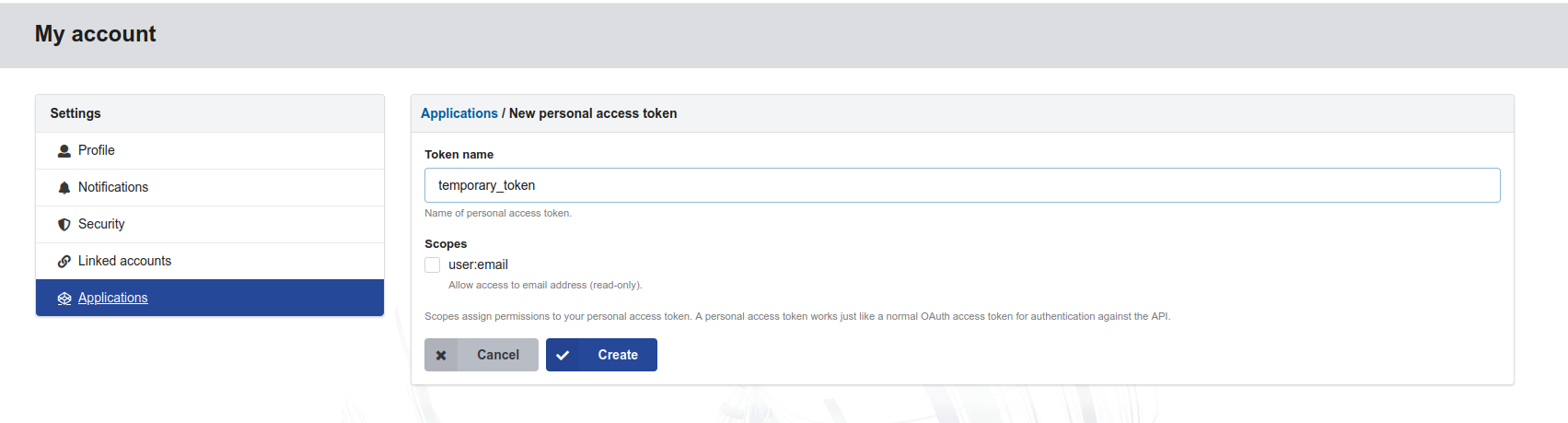
The personal access token creation form, before a token value has been generated.
Click “Create” on the bottom of the text box. Your token is now created and immediately displayed. Please note that this is the only time the access token is visible, so copy it to a safe place.
The access token is now ready for use. Access tokens can be removed by clicking on the remove button next to each access token name.
Replace <personal-access-token> in the setup above with your actual token. A token is valid only on the instance where you created it; test and production instances require separate tokens. Treat the token as a credential and send it in the header rather than including it in a URL.
Requests#
The API requests are made to a URL with parameters as described below. Each URL consists of a protocol part (always ‘https://’), a hostname and a path. One of the following hostnames can be used to identify the B2INST instance:
- https://b2inst.pid.gwdg.de - the hostname for the production site.
- https://b2inst-test.gwdg.de - the hostname for the test instance. Use this base URL for testing.
Notes: - Please make sure that you are not using production instances for creating test records or testing the API in general. - Make sure to add a forward-slash (‘/’) to the URL if that is required. If you forget the slash then the request is interpreted differently and you might get other results than expected. In many cases, a redirect (status code 302) or not found (status code 404) will be returned, a result that in the browser will be handled automatically, but not in a typical API request.
The curl commands in the examples expect that the B2INST_HOST environment variable contains the host part of the targeted B2INST site, e.g.:
Command:
export B2INST_HOST='b2inst-test.gwdg.de'
Responses#
All request response bodies are JSON encoded (UTF-8 encoded).
A record is represented as a JSON object:
{
  "field1": "value"
}
{
  "collection": [
    {
      "field1": "value",
      "field2": "value"
    },
    {
      "field1": "value",
      "field2": "value"
    }
  ]
}
{
  "updated": "YYYY-MM-DDTHH:MM:SS.ssssss+00:00"
}
Command:
{
  "message": "The requested URL was not found on the server.  If you entered the URL manually please check your spelling and try again.",
  "status": 404
}
Status codes#
The request status codes indicate whether the request was successfully received, processed and/or executed. B2INST follows the HTTP status codes where possible.
One of the following status codes is returned in case the request was successful:
200 : Request was successfully received and executed, see body for results

201 : Object created, see body for results

204 : No contents, this occurs when for example an object is successfully deleted
400 : Request was not understood

401 : Authentication is required or the supplied credentials were rejected

403 : The current identity lacks permission; this can also occur for an anonymous request

404 : Requested object not found or API endpoint does not exist
Any status code greater then or equal to 500 indicates that internally something went wrong in the server. If in this case the problem persists, kindly report this to EUDAT.
Prettyprint responses#
To prettyprint the response JSON add pretty_print=1 to the request query parameters.
A publication workflow#
The B2INST instrument record creation workflow is as follows:
- Identify a target community for your data by using the HTTP REST API List all communities function
- Using the community’s identifier, retrieve the JSON Schema of the record’s metadata. The submitted metadata will have to conform to this schema. Use the Get community schema function
- Create a draft record instructions
- If files are enabled, upload files to the draft
- Start file upload instructions
- Upload a file instructions
- Commit a file instructions
- Either associate the draft with a community and publish directly, when permitted, or configure and submit a community review.
- Check the publication or review response. A submitted review can remain pending until an authorized reviewer accepts it.
Available HTTP REST API requests#
Each allowed request is described as follows:
  Description : A description of the function of the request.

  HTTP method : which HTTP protocol such as GET or POST method is used.

  URL path : grammar for the allowed paths used together with one of the base URLs above.

  Status code : the returned status code upon a successful request.

  Returns : the returned data in the body of the response upon a successful request.

  Example : an example of usage using the program curl from the command line.
  Required parameters : the parameters that need to be added to the URL.

  Required data : the data that needs to be sent with the request, the expected structure is shown in the example.
-
RECORD_ID- identifier for a specific record, which can be in draft or published state -
RECORD_HEAD_ID- head identifier for a group of record that are versions of each other -
FILE_BUCKET_ID- identifier for a set of files. Each record has its own file set, usually found in the links -> files section -
COMMUNITY_ID- identifier of a user community in B2INST -
COMMUNITY_SLUG- short name (slug) of a user community in B2INST -
SCHEMA_ID- identifier of a metadata schema in B2INST -
FILE_NAME- name of a file in a specific file bucket -
FIELD_NAME- name of a metadata field
For most requests, an example is shown using a curl command. If a payload is sent with the request, this is shown in a structured way below the example. The returned response body and request-specific errors are shown if applicable.
Last update: 08.10.2026
Last review : 08.10.2026