Remote Files — User Guide#
Remote files let you attach files to a record by URL instead of uploading them. The file stays on its original server; B2SHARE stores only the link and monitors whether it remains reachable.
When to use remote files#
Use remote files when:
- the file is already hosted on a trusted server (e.g. Allas object storage, institutional repository)
- the file is too large to upload through the browser
- you want the canonical copy to remain at its original location
Adding a remote file to a draft#
- Open or create a draft record.
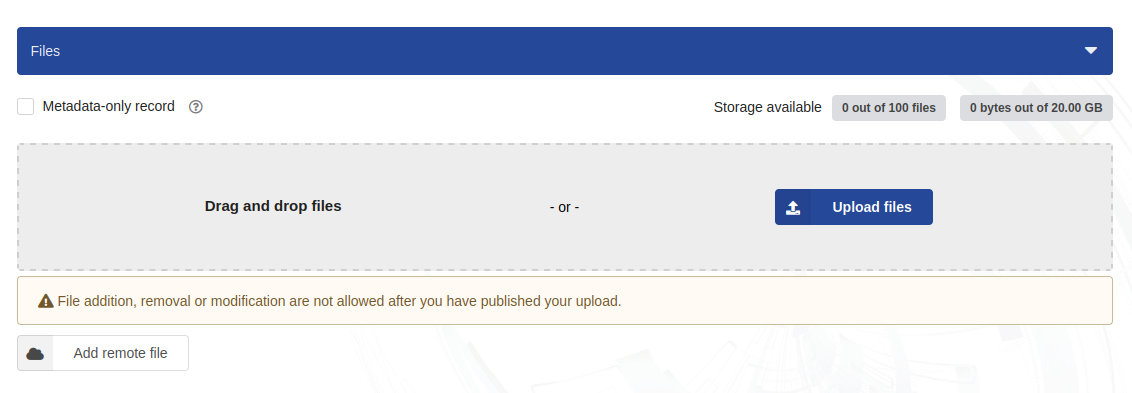
- Go to the Files section.
- Click Add remote file.
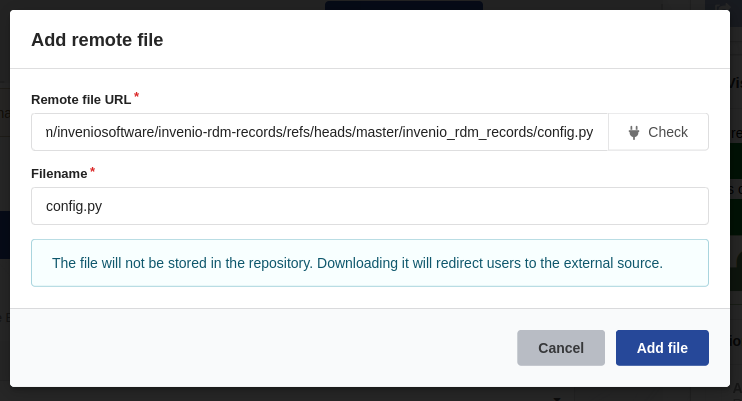
- Paste the direct URL of the file into the modal that opens.
-
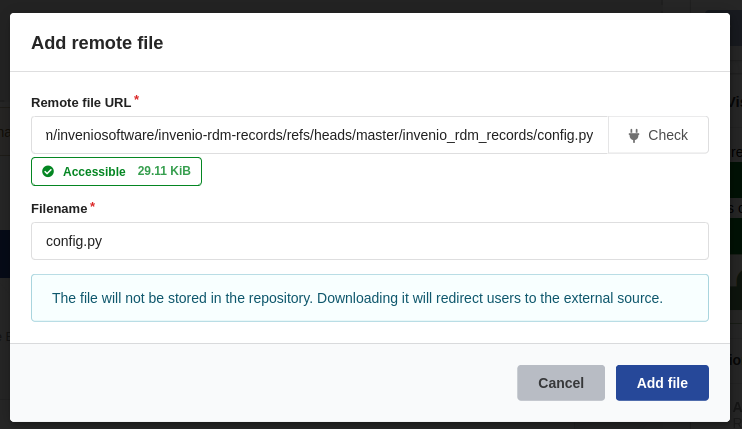
Click Check to verify the URL. B2SHARE checks that the URL is reachable and returns the file size.
-
If the check passes, a green indicator appears with the file size.
- If the URL is not reachable, a red indicator is shown. Fix the URL and try again.
- If the server does not support the required HTTP methods (HEAD / Range-GET), a blue indicator appears. Tick the confirmation checkbox to continue — the file is registered but its size cannot be confirmed.
- Fill in the filename (auto-filled from the URL; edit if needed).
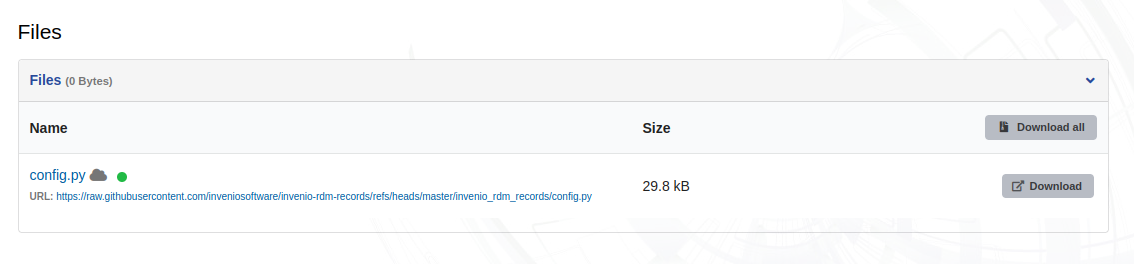
- Click Add file. The file appears in the record’s file list.
- Save the draft as usual.
Supported URLs#
Only URLs from domains approved by the B2SHARE administrator are accepted. If your domain is not on the list, contact the service administrator.
URLs must begin with https:// or http://.
Reachability status#
After a record is published, B2SHARE checks its remote files every day. The result is shown as a coloured indicator next to each file.
| Status | Colour | Meaning |
|---|---|---|
| Accessible | Green | File responded successfully on the last check |
| Unreachable | Yellow | File did not respond; issue started recently |
| Unverifiable | Blue | Server exists but does not support automated checks |
| Dead | Red | File has been unreachable for 14 or more days |
| Unknown | Grey | Not yet checked |
A blue (unverifiable) status does not mean the file is gone — it means the server cannot confirm availability programmatically. The file link is still clickable and may work normally in a browser.
A red (dead) status means the file has been confirmed unreachable for at least two weeks. Contact the owner or the service administrator if this affects your record.
Downloading remote files#
Remote files are accessed directly from their source server. Clicking the file link in a published record opens or downloads the file from its original URL.
B2SHARE does not cache or proxy remote file content.
Limitations#
- You cannot mix uploaded and remote files for the same file slot.
- Removing a remote file from a draft removes the link; it does not delete anything from the remote server.
- After publication, file links cannot be edited. Contact the service administrator if a URL must be updated.
Last update: 2026-08-11
Last review: 2026-08-11